
Connecting AI Agents to Declarative Webhooks Using an MCP Server
MCP (Model Context Protocol) is an open standard that lets AI assistants, such as Claude, use tools that live in other systems. Salesforce can host MCP servers for your org, and Declarative Webhooks includes a set of MCP: actions that you can add to such a server as tools.
Once connected, an AI assistant can work with your Declarative Webhooks configuration in plain language. For example, it can:
- List and read your callout and inbound call templates
- Create new templates or edit existing ones
- Make test callouts and read the response
- Read call logs and help you find out why a call failed
- Validate formulas before they are used in a template
This article explains how to:
- Choose what AI agents are allowed to do with each template
- Create a custom MCP server in Salesforce and add the Declarative Webhooks tools
- Create the External Client App needed for authentication
- Connect Claude to the MCP server and test the connection
Note: Salesforce Hosted MCP Servers are available in Enterprise Edition orgs and above (including Developer Edition orgs and sandboxes). The Setup screens below are maintained by Salesforce and may look slightly different in your org.
Step 1: Choose What AI Agents Can Do With Each Template
Before connecting any AI agent, decide which templates it should be able to see and use. Access is controlled per template, and all options are disabled by default. A template that has no MCP options enabled is invisible to AI agents.
Open a callout template or an inbound call template and go to the MCP Settings tab. The following options are available:
- MCP – View Enabled: Allows AI agents to list the template, read its full definition (settings, headers, body and actions) and read its call logs. Authentication details are never included.
- MCP – Edit Enabled: Allows AI agents to modify the template (settings, headers, body and actions).
- MCP – Call Enabled (callout templates only): Allows AI agents to make callouts using the template, including any response actions that run on the response.
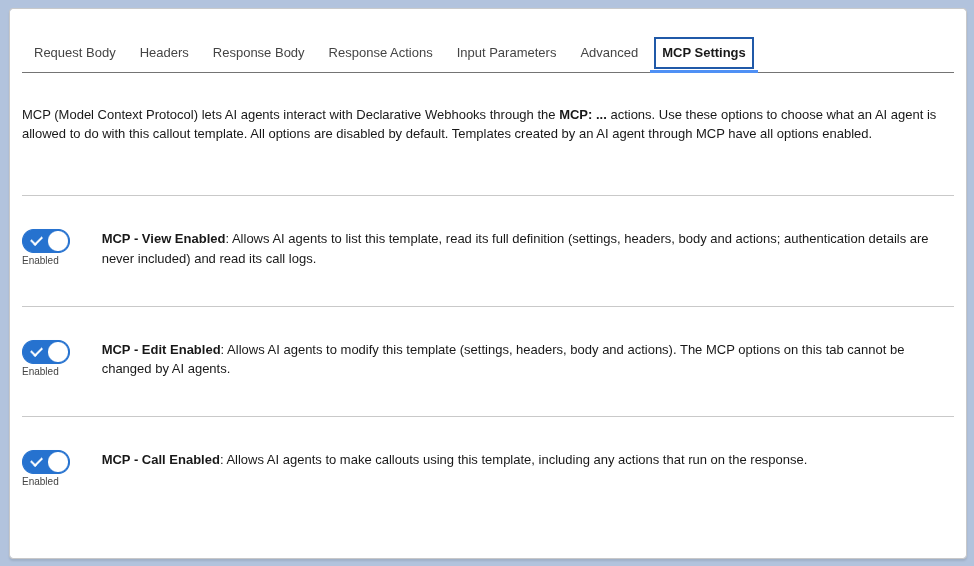
Enable the options you need and save the template.
A few things to keep in mind:
- The MCP options can only be changed by a user in Salesforce. AI agents can never change them.
- Templates created by an AI agent through MCP have all options enabled, so the agent can continue working on them.
- If a callout template uses a pre-callout template, both templates need MCP – Call Enabled for the agent to make the callout.
- Logs are only returned for templates that have MCP – View Enabled.
- Secret authentication values (passwords, tokens, API key values) are never returned to the AI agent. The agent can only see whether a value is set. It can set new values when editing a template, but it can never read them back.
Tip: Start with MCP – View Enabled only. Enable editing and calling once you are comfortable with how the AI agent works with your templates.
Step 2: Create the MCP Server in Salesforce
Next, you will create a custom MCP server in Salesforce and add the Declarative Webhooks tools to it.
- Go to Setup, type MCP Servers in the Quick Find box and open the MCP Servers page (under Integrations > API Catalog).
- Click the Custom Servers tab, then click New.
- Fill in the server details:
- Label: for example, Declarative Webhooks
- API Name: for example, DeclarativeWebhooks
- Description: for example, Manage and test Declarative Webhooks callout and inbound call templates.
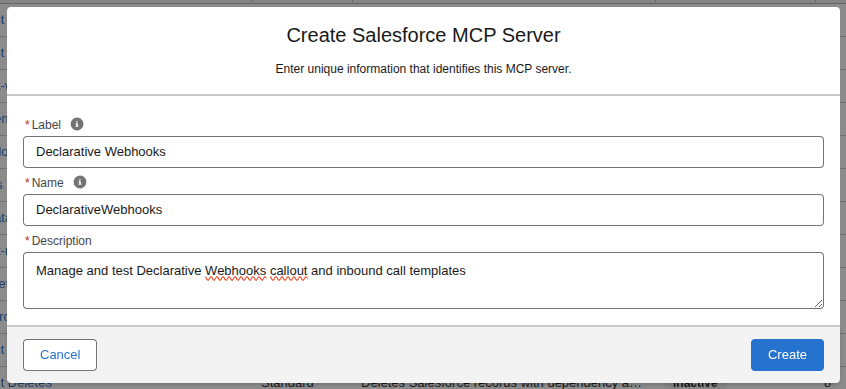
- In the Tools section, click Add Tool and select Apex Action.
- Search for MCP: to find the Declarative Webhooks actions and add the ones you want the AI agent to use. You can add all of them, or only a subset (for example, only the read-only tools). The full list is described in the next section.
- Click Save.
- Click Activate.
- Copy the Server URL from the server’s detail page. You will need it when connecting Claude.
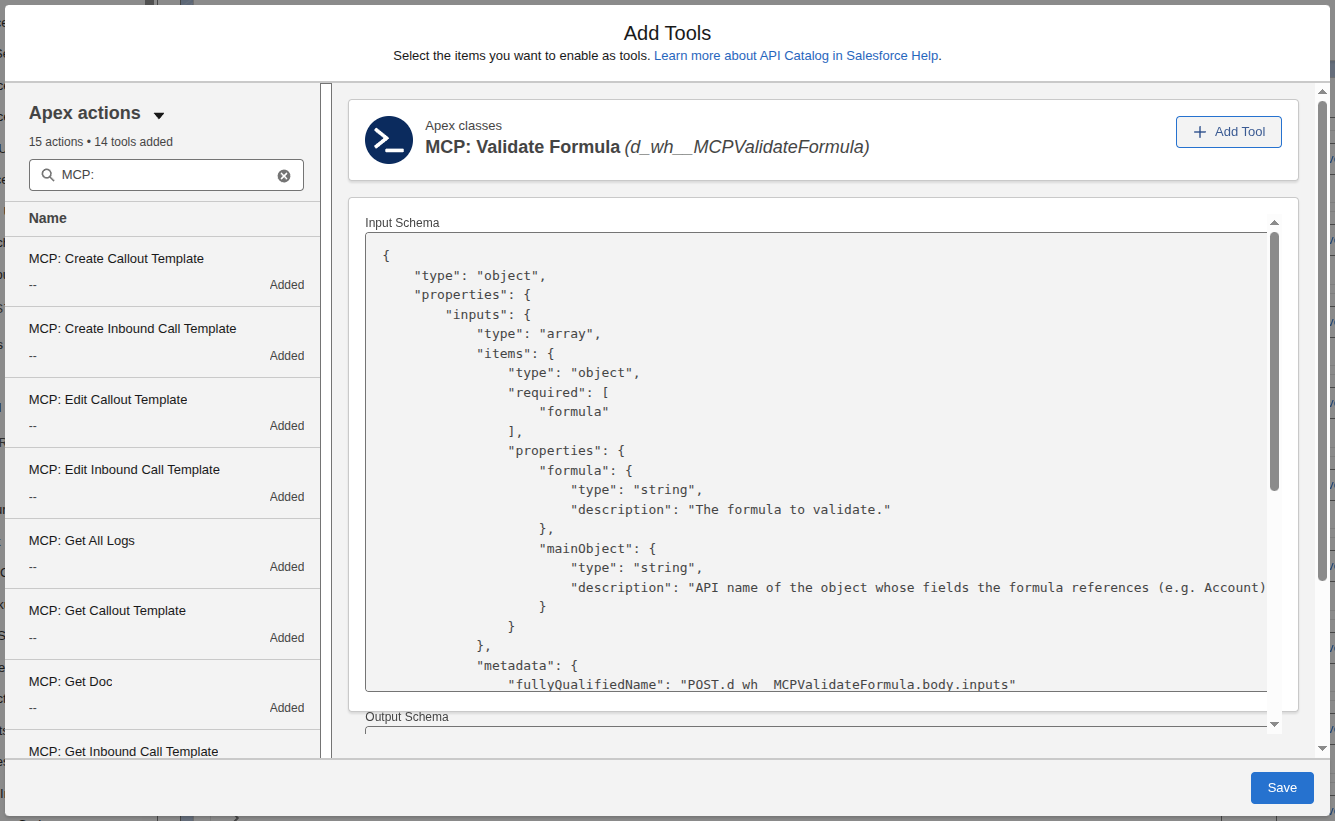
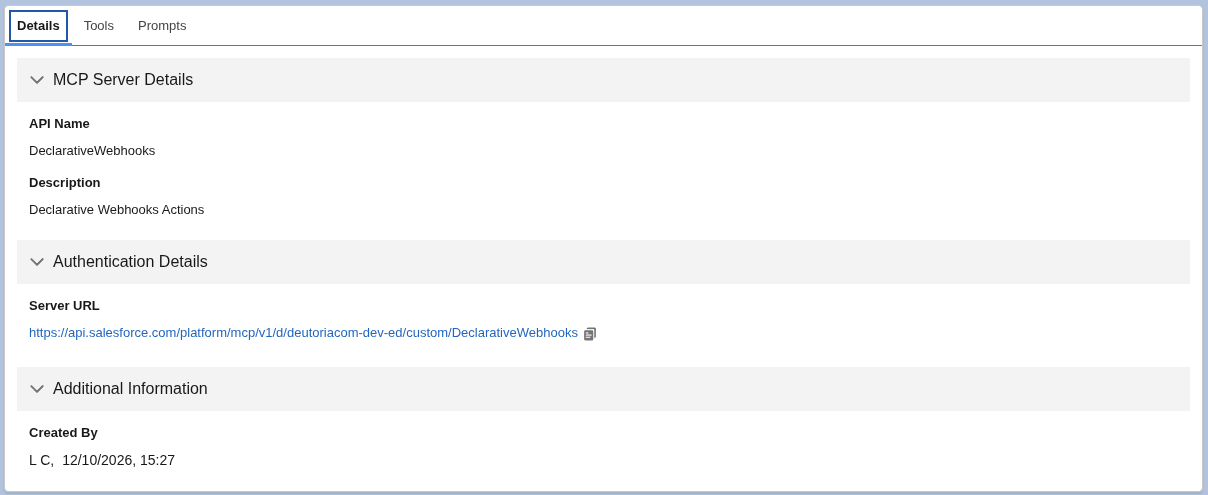
Note: Always copy the Server URL from the detail page instead of typing it. URLs for sandboxes and scratch orgs are different from the URLs for production and Developer Edition orgs.
Note: To add or remove tools later, deactivate the server first, make your changes, save and activate it again.
Available MCP Tools
Declarative Webhooks provides the following MCP tools. Each tool comes with a detailed description that tells the AI agent when and how to use it, so you don’t need to explain them in your prompts.
Documentation
These tools give the AI agent access to the Declarative Webhooks documentation (formulas, merge fields, body nodes, actions and more), so it can build templates correctly. We recommend always adding them.
- MCP: List Doc Topics – Lists the available documentation topics, with their key, title and summary.
- MCP: Get Doc – Returns the full content of a documentation topic (for example, *formulas*).
Callout Templates
- MCP: List Callout Templates – Returns all callout templates the agent can view, with their name, developer name, active flag, method, URL and main object.
- MCP: Get Callout Template – Returns the full definition of a callout template: settings, authentication, headers, request body, response body and response actions. Secret values are never returned. Requires MCP – View Enabled.
- MCP: Create Callout Template – Creates a new callout template. The name, method, URL and number of records are required.
- MCP: Edit Callout Template – Updates an existing callout template. Only the properties sent by the agent are changed. Requires MCP – Edit Enabled.
- MCP: Make Callout – Makes a callout synchronously using a callout template and returns the HTTP status code and response body. Optionally takes a main record Id and input parameters. Requires MCP – Call Enabled.
- MCP: Get Logs For Callout Template – Returns the latest logs of a callout template, newest first (25 by default, up to 1000). Requires MCP – View Enabled.
Inbound Call Templates
- MCP: List Inbound Call Templates – Returns all inbound call templates the agent can view, with their name, developer name, active flag, method and main object.
- MCP: Get Inbound Call Template – Returns the full definition of an inbound call template: settings, authentication, request body, response bodies (2XX, 4XX, 5XX) and actions. Secret values are never returned. Requires MCP – View Enabled.
- MCP: Create Inbound Call Template – Creates a new inbound call template. The name and method are required.
- MCP: Edit Inbound Call Template – Updates an existing inbound call template. Only the properties sent by the agent are changed. Requires MCP – Edit Enabled.
- MCP: Get Logs For Inbound Call Template – Returns the latest logs of an inbound call template, newest first (25 by default, up to 1000). Requires MCP – View Enabled.
Logs and Formulas
- MCP: Get All Logs – Returns the latest logs across all templates the agent can view, newest first. It can return only failed calls and can include the request and response bodies.
- MCP: Validate Formula – Checks a Declarative Webhooks formula before it is used in a body node or an action: syntax, function names and arguments, and field references.
Important: MCP: Make Callout sends a real request to the external system and runs the template’s response actions, which can create or update records in Salesforce. Only enable MCP – Call Enabled on templates that are safe to call, and consider testing in a sandbox first.
Tip: If you only want the AI agent to help you troubleshoot, add only the documentation, list, get and log tools. The agent will not be able to change anything.
Step 3: Create the External Client App
Claude authenticates to Salesforce using OAuth. For this, you need an External Client App in your org.
- Go to Setup, type External Client App Manager in the Quick Find box and open it.
- Click New External Client App.
- Fill in the basic information:
- External Client App Name: for example, Claude MCP Client
- API Name: for example, Claude_MCP_Client
- Contact Email: your email address
- Distribution State: Local
- Expand the API (Enable OAuth Settings) section and check Enable OAuth.
- In Callback URL, enter exactly: “https://claude.ai/api/mcp/auth_callback”
- In OAuth Scopes, add the following:
- Access Salesforce hosted MCP servers (mcp_api)
- Perform requests at any time (refresh_token, offline_access)
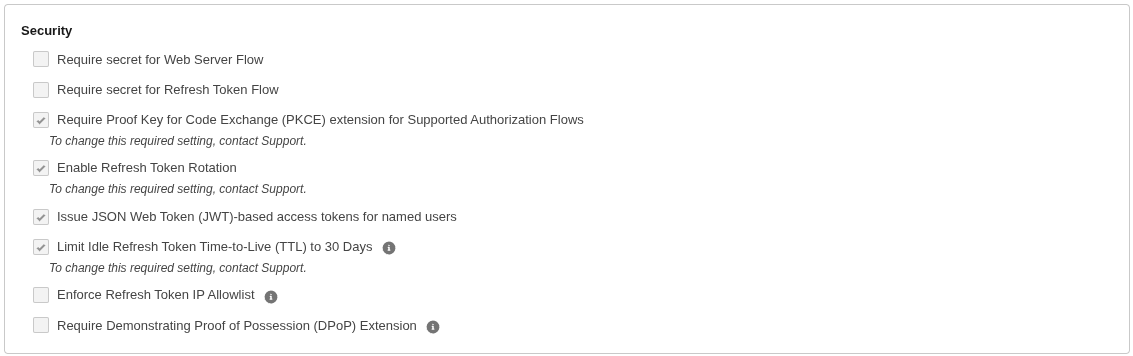
- In the Security section, check:
- Require Proof Key for Code Exchange (PKCE) extension for Supported Authorization Flows
- Issue JSON Web Token (JWT)-based access tokens for named users
- Click Create.
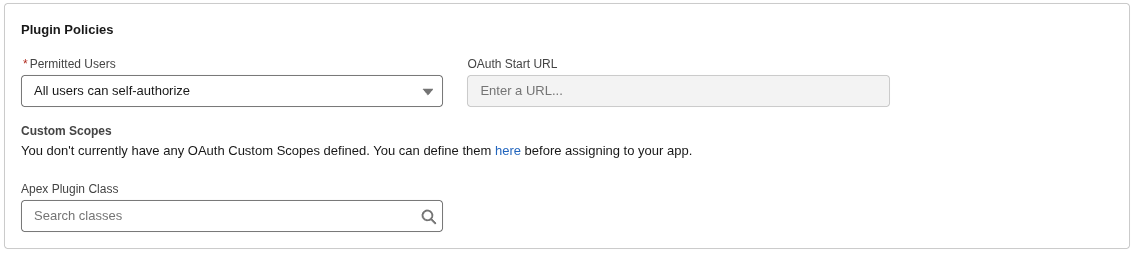
- Open the Policies tab, click Edit and, under OAuth Policies, set Permitted Users to All users may self-authorize (or to Admin approved users are pre-authorized if you want to control access with a permission set). Save.
- Open the Settings tab, expand OAuth Settings and click Consumer Key and Secret. Copy the Consumer Key (and the Consumer Secret, if you plan to use it). You will need it when connecting Claude.

Note: A new External Client App can take 10 to 30 minutes to become active. If you connect too early, you may see a redirect_uri_mismatch error. Wait a few minutes and try again.
User Permissions
The AI agent acts as the Salesforce user who authorizes the connection. All of that user’s permissions and sharing settings apply. The user needs:
- The Declarative Webhooks Admin permission set (or a permission set that gives access to the Declarative Webhooks objects and the MCP: Apex actions)
- Access to the External Client App (see Permitted Users above)
Tip: For a production org, consider connecting with a dedicated user that only has the permissions the AI agent needs.
Step 4: Connect Claude to the MCP Server
You can now add the MCP server as a connector in Claude.
- Log in to claude.ai (or open the Claude Desktop app).
- Click Customize in the left sidebar, then click Connectors.
- Click + (Add) and select Add custom connector.
- Fill in the details:
- Name: for example, Declarative Webhooks
- Remote MCP server URL: the Server URL you copied in Step 2
- Expand Advanced settings and enter:
- OAuth Client ID: the Consumer Key of the External Client App
- OAuth Client Secret: the Consumer Secret (optional)
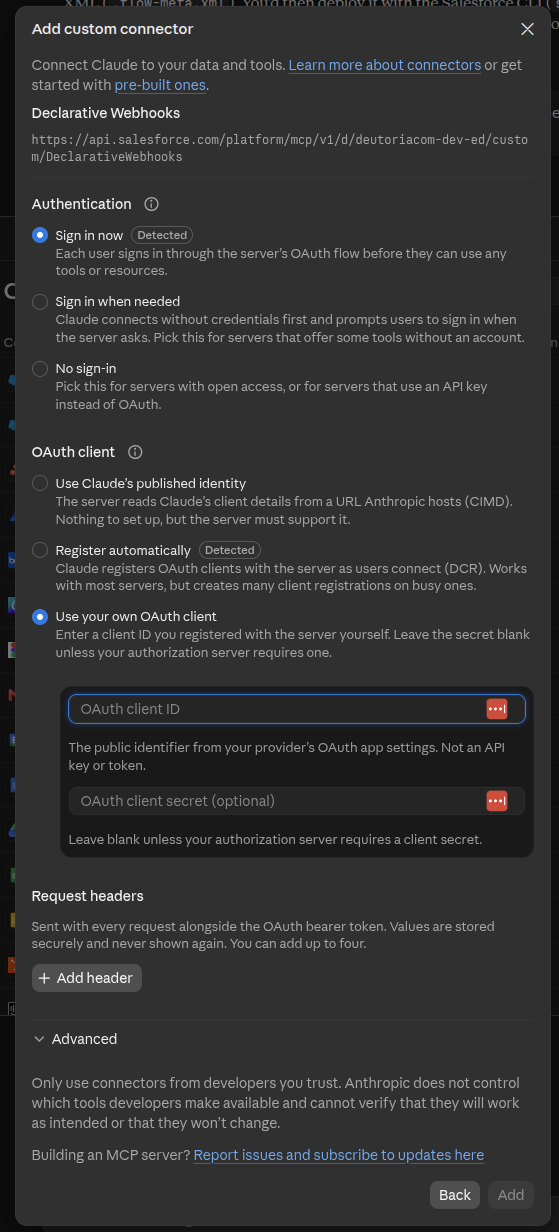
- Click Add, then click Connect.
- A Salesforce login page opens. Log in with the user that the AI agent should act as and click Allow to approve access.
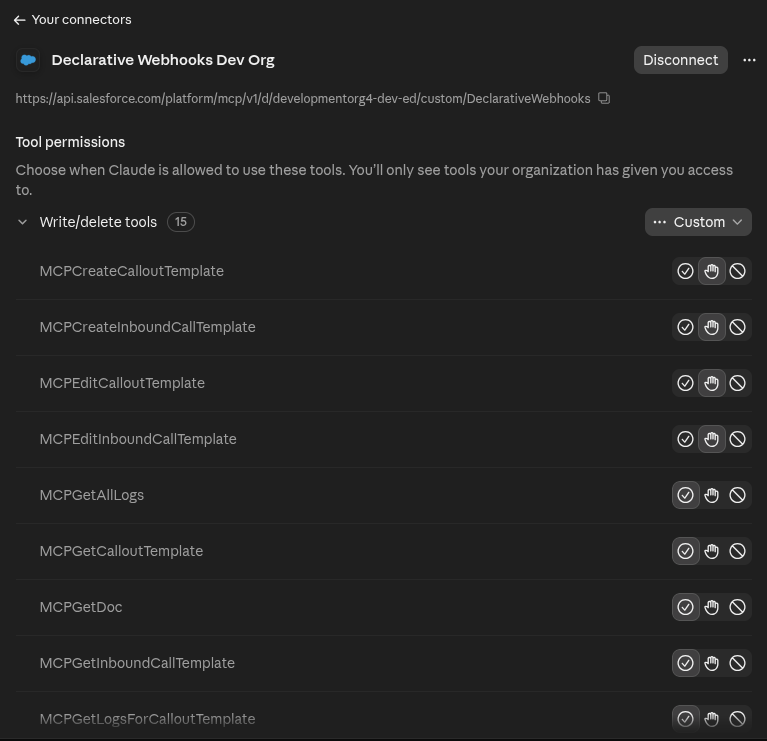
- You are redirected back to Claude and the connector shows as Connected. Click it to see the list of Declarative Webhooks tools.
Note: If you are on a Claude Team or Enterprise plan, an organization owner may need to add the custom connector first, in the organization settings. Each user then connects with their own Salesforce login.
Step 5: Test the Connection
Start a new chat in Claude and make sure the Declarative Webhooks connector is enabled for the chat (in the tools menu of the message box).
Start with a simple, read-only request, for example: “List my Declarative Webhooks callout templates.”
The first time Claude uses a tool, it asks for your permission. Click Allow once or Always allow.
Claude returns the list of callout templates that have MCP – View Enabled. If the list is empty, check the MCP Settings tab of your templates (see Step 1).
Once this works, try some of the other tools. Here are a few examples:
- Show me the callout template “Create_GitHub_Issue” and explain what it does.
- Show me the failed calls from the last 20 logs and tell me why they failed.
- Make a test callout with the “Get_Weather” template and show me the response.
- Create a callout template that sends a POST request to https://api.example.com/orders when an Opportunity is closed won, with the Opportunity name, amount and close date in the body.
- Add a header “X-Source: Salesforce” to the “Send_Order” template.
After Claude creates or edits a template, open it in Salesforce to review the changes before activating it or using it in production.
Important: AI agents can make mistakes. Always review templates created or edited by an AI agent before using them.
Troubleshooting
- Authorization with the MCP server failed: Check that Issue JSON Web Token (JWT)-based access tokens for named users is enabled in the External Client App. If you changed it after connecting, disconnect the connector in Claude and connect again.
- redirect_uri_mismatch: Check that the callback URL is exactly “https://claude.ai/api/mcp/auth_callback“, with no trailing slash. If you just created the External Client App, wait a few minutes and try again.
- Claude doesn’t see any tools: Check that the MCP server is active and that the tools were added before activating it.
- A template is missing or “not found”: Check the template’s MCP Settings tab. The agent only sees templates with MCP – View Enabled, and you must use the template’s Developer Name.
- A tool returns an access error: Check that the user who connected has the Declarative Webhooks permission set and access to the MCP: Apex actions.
