
Step 4: Callout Template Response Body (Old Interface)
Define the expected response
The Response Body section works the same as the Request Body, however, you don’t need to map any fields at this step. Simply select Node and Node Type.
The Node and Node Type describes what the response from the server will look like.
Create from sample JSON request
If you utilized the ‘Create from sample JSON request’ button in the previous step, your API documentation from the app or platform being implemented will also have a Returns section that you can copy from. In the previous example, we used QuickBooks, so we’ll reference this in the example below:
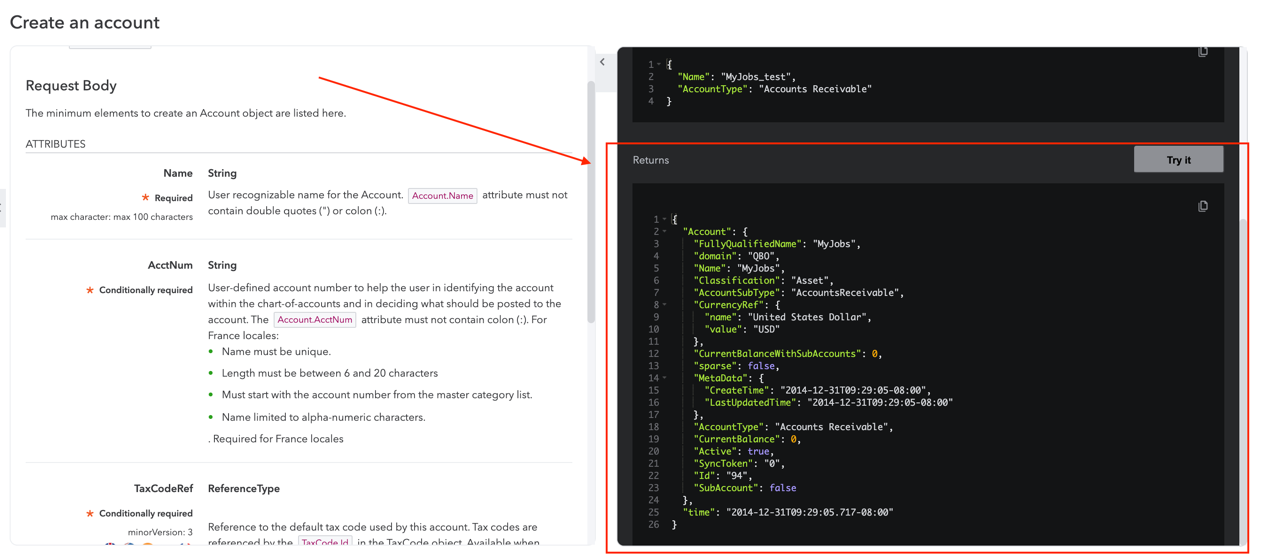
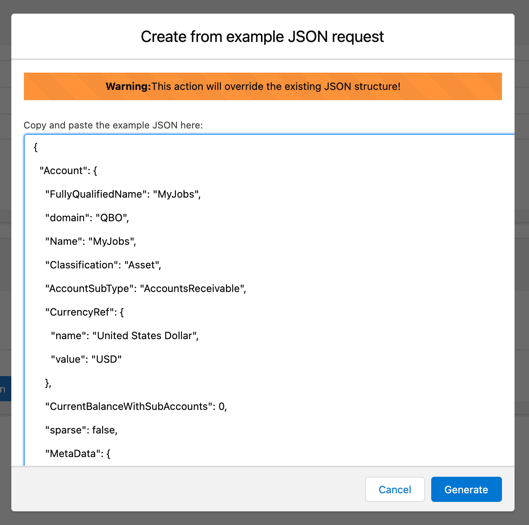
Just as we did previously, copy the Returns sample from API documentation and select ‘Create from sample JSON request’ button and paste your example.
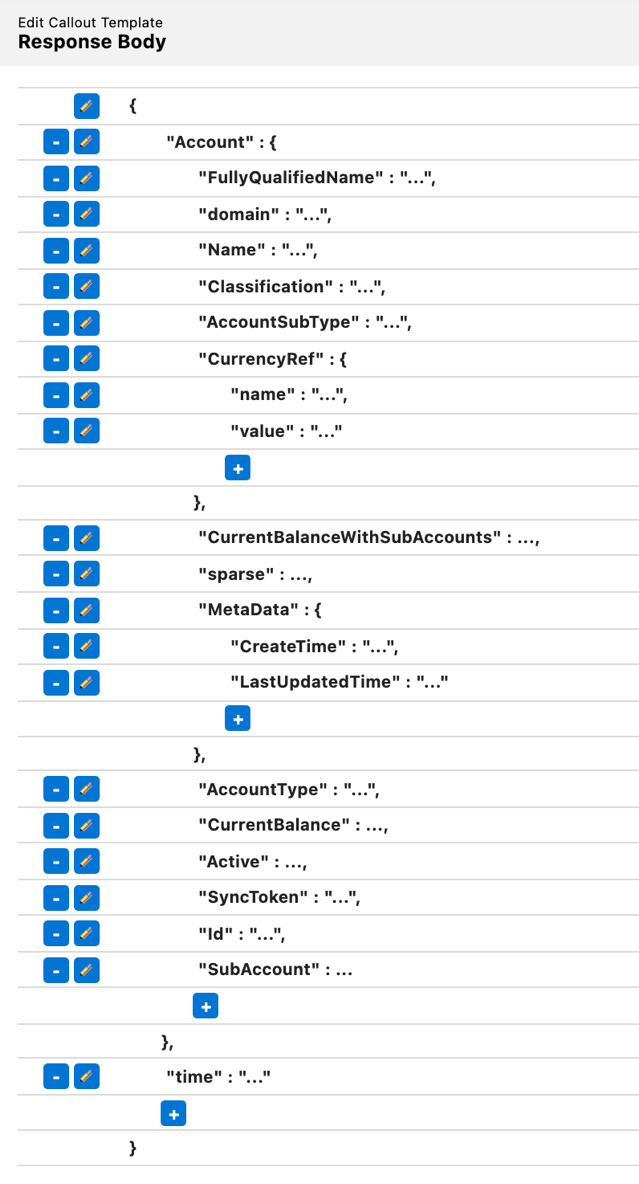
You will see the Return Body generated for you. As mentioned, you can also do this manually by creating your Node Name and Node Type, but again, no values or fields will be mapped.
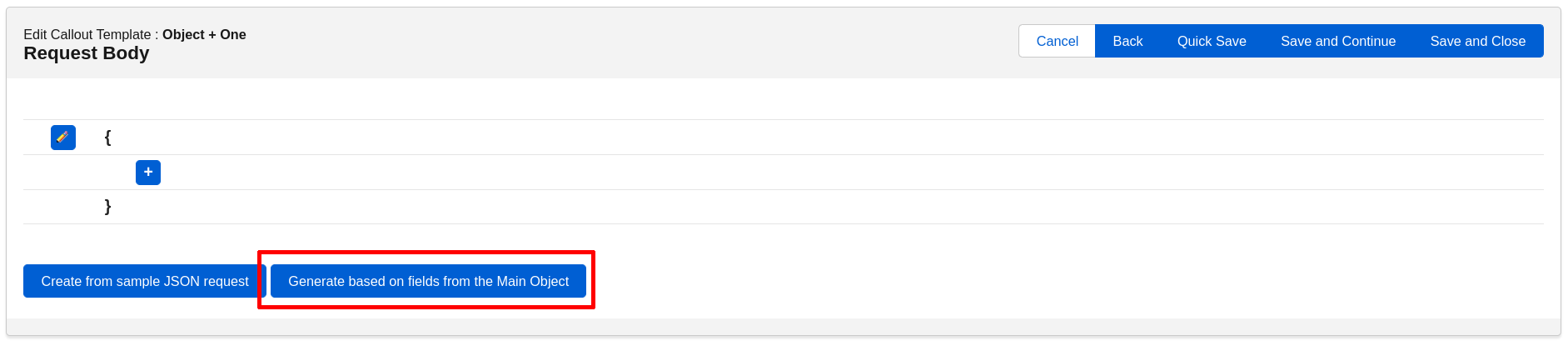
Generate based on fields from Main Object
If you want to generate the JSON body based on fields from the main object, click the “Generate based on fields from Main Object” button.
It will open a popup that will allow you to select the fields used to generate the body.
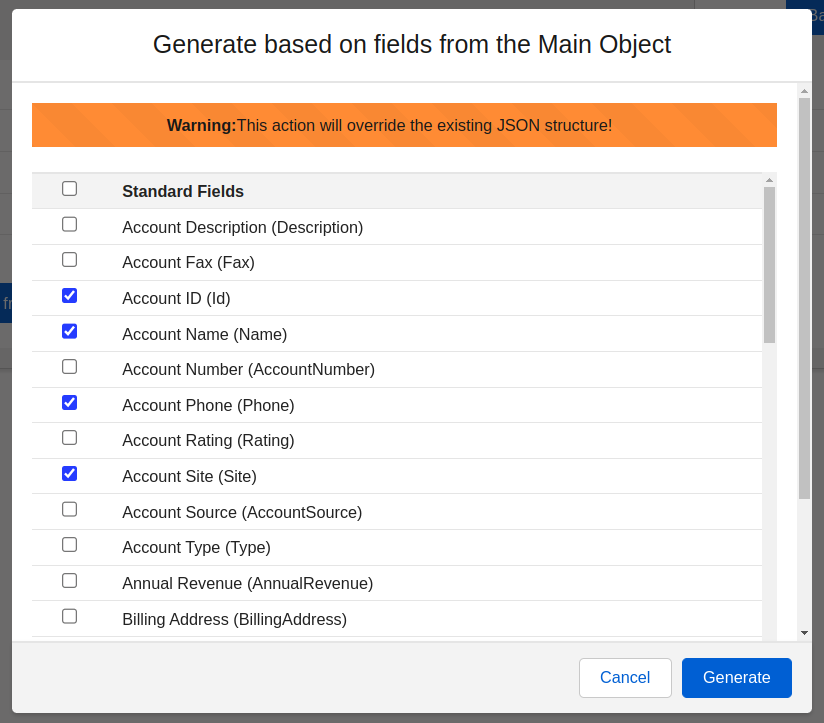
Once you select all the fields, click “Generate” and see the JSON body being generated for you.
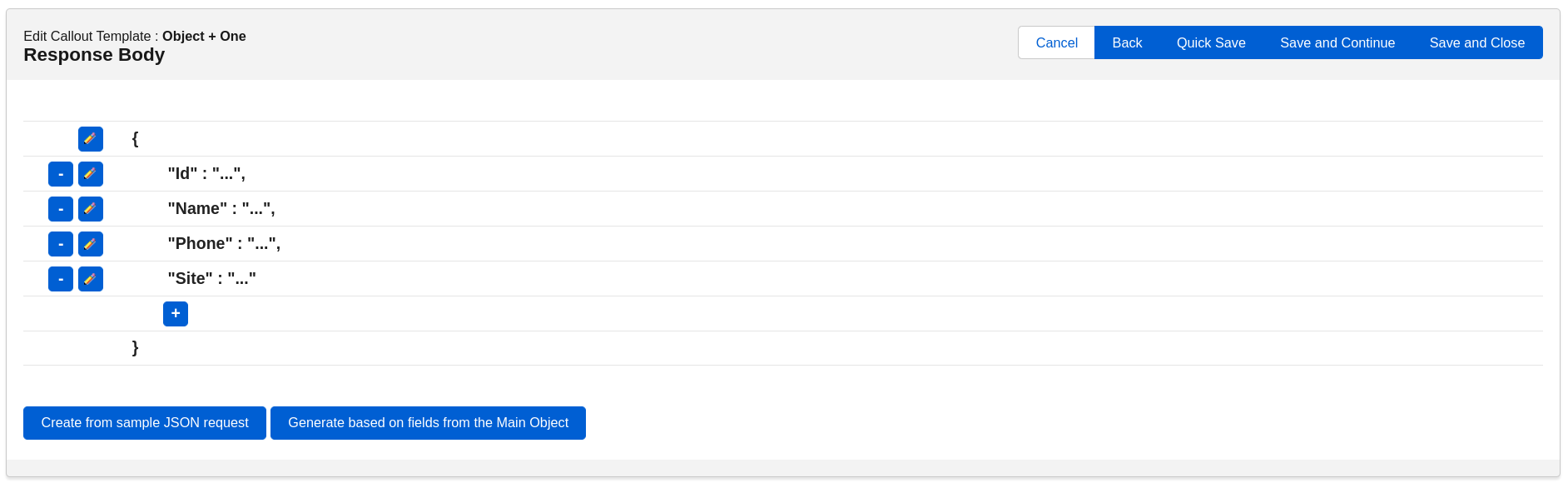
NOTE: If you have started mapping in the JSON Builder and you opt to utilize the ‘Generate based on fields from Main Object’ button, your previous response body will be overwritten.
Once you have completed defining the response body, scroll to the top of the page and press ‘Continue’ to edit the response actions.
